In addition to platform-wide emails and notifications, Channels (Feeds) are another way for admins to enable communication with and between platform users.
Notes:
- Admins can moderate feed content reported as inappropriate.
- Group officers can create their own group feeds.
In order for the Community Feed to appear to platform users, the Feed hub menu item Managing a Community Hub must be included when configuring a Community Hub Managing a Community Hub.

Each campus has one Community Feed, and admins can create additional channels as needed for specific topics. The users who can see and interact with channels depend on their hub access. For example, a graduate student hub’s feed will not include posts by undergraduates.
If the Community Feed is to be admin-only (other users can view but not post), open the General Settings to the Permissions & Privacy tab and enable Community Feed Posting.
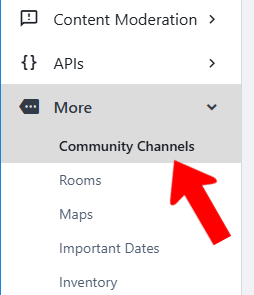
To create a new feed, switch to Admin mode if needed, open More along the left, and choose Community Channels.
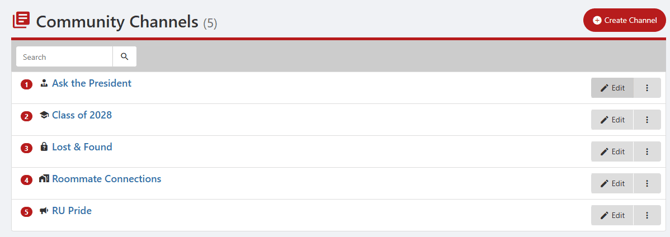
Each channel simply needs a name, and adding a purpose is optional. Setting a channel icon and color affects mobile app appearance.
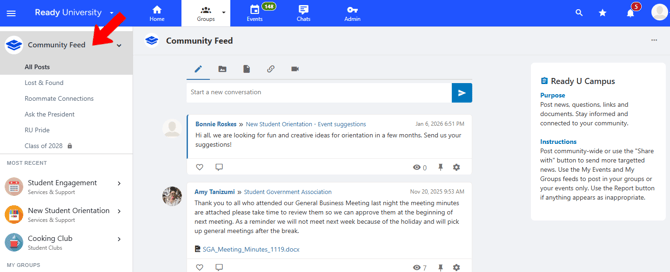
On the web version, users enter a Community Hub and click Feed on the left.
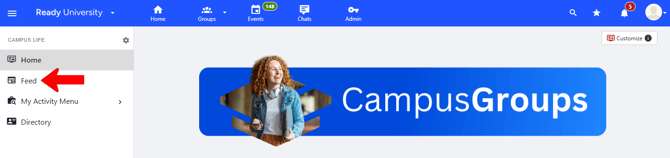
The Community Feed appears at the top left, with any additional channels just below.
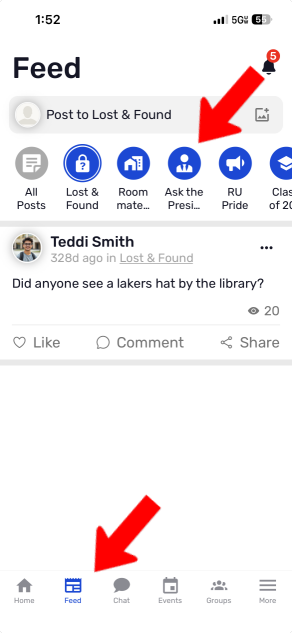
On the mobile app, Feed is accessed from the bottom menu, with a scrolling list of channels along the top.