
The CG Rooms module (formally called CampusGroups Room Reservations Module) enables platform admins to streamline campus space management.
If your campus has this feature, there are two ways users can reserve rooms.
- Users can access the room scheduler in their hub (requires the Room Reservation hub menu item). Users can also access a specific room scheduler via the room’s QR code. This code could be displayed physically in the room, or digitally depending on your building systems.
- When a group officer creates an event, rooms can be reserved in Step 3: When.
To configure rooms and their availability, switch to Admin mode if needed, open More on the left, and choose Rooms.
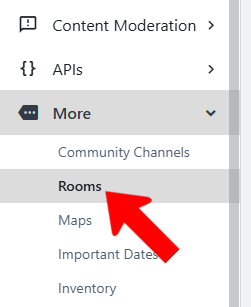
Note: CG Rooms is an add-on module; contact your Client Success Manager to learn more. If your platform uses a third-party room reservation service (such as EMS or 25Live), you will see that user interface when you choose More / Rooms.
Before getting started with room configuration, set up these Custom Values:
- Room Type: The different kinds of spaces, such as classroom, theater, auditorium, study room, etc.
- Room Feature: Room amenities or attributes, such as whiteboard, podium, A/V system, etc.
- Building: The physical locations of rooms, such as Student Union, Smith Commons, Morse Concert Hall, etc.
- Floor: Ground Floor, 1st Floor, 2nd Floor, etc.
Also be sure that, if room reservation approval is required, you have the necessary room Approval Processes in place, linked to the correct forms Approval Processes. (If no approval is required, spaces can be booked automatically.)
To add a room, click Create Room.

Complete room details, including name, Room Type, capacity, Room Features, etc.

The All Rooms list can be searched or filtered, and each room can be edited or deactivated (made unavailable for reserving).
To determine when rooms can be reserved, and by whom, click Manage Availability.

Assign a rule name and optional description.

Other fields include:
- Applies to requests made after / before: The date range during which the rule is active.
- Applies to reservations starting / ending: The date range of reservations.
- Only applies to requests made by: The Access Rights that determine the users the rule applies to.
- Enabled for: Choose Direct bookings (reservations made directly for general use, such as study groups or meetings) and / or Event Room Reservations (spaces booked as part of the event creation process).
- Provides availability slots for: The spaces this rule applies to, defined by one or more room names, Room Type, Building, and/or Floor.
After saving the rule, click Add Availability Slot.

Define the available time ranges for each day.

If there are specific time periods during which you want to restrict room access, such as exam periods, breaks, or construction, click Manage Blocks.

The block interface is similar to the availability interface, with date ranges and specific blocked time periods. The list of blocks can be filtered to show current, past, upcoming, or all blocks. Blocked time periods will override available periods.

In addition to booking on the platform, users can scan a room’s QR code to make a reservation. In the All Rooms list,click a room’s More icon to generate the code.

Two options at the top of the All Rooms list enable you to keep track of room usage.
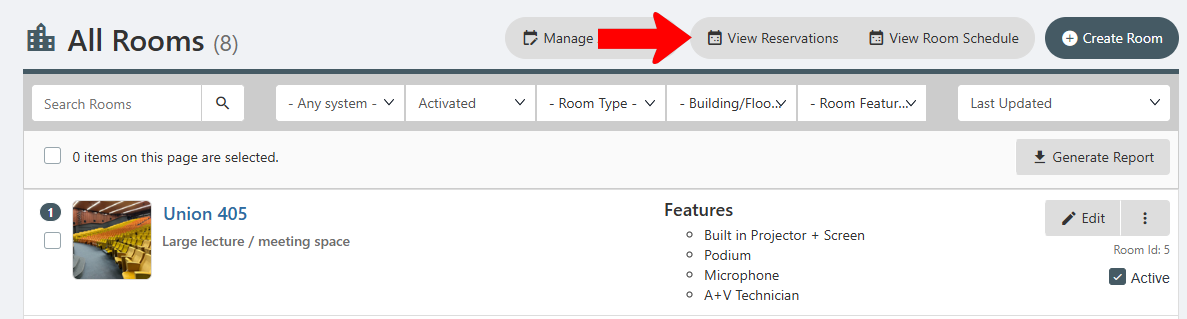
Click View Reservations to see a list of users and their reserved rooms. A pending reservation means that the approval process is not yet complete.
Click View Room Schedule for a calendar view of each room showing availability, reservations, and blocks. Reservations can also be made directly on this page. A blue reservation slot indicates a direct booking, while green is used for event bookings. Yellow text is used when approval is pending, otherwise text is white.

Note: All users will see all reserved time slots. Only users with the correct Access Rights can see booking details.