
Note: This article covers how admins work through the payment request process. Admins can also manually approve or reject transactions in the Transactions list, though our best practice is to follow the approval processes set in place.
For a simple budget or group funds Creating a Payment Request: Simple Budget or Group Funds, group officers submit payment requests against their allocated amounts Creating a Payment Request: Simple Budget or Group Funds.
With an advanced budget Creating a Payment Request: Advanced Budget, group officers first submit budget requests Creating a Payment Request: Advanced Budget to receive funds. After budgets are approved, officers can then submit payment requests Approving Payment Requests. Note that advanced budget payment requests can only be created when the current budget step Creating an Advanced Budget has the Payments or Rolling type.

For all budget types, before accepting any payment requests, your Payment Requests approval process(es) Approval Processes must be set up for all group types included in all budgets.
Note: For an Advanced Budget, there is an option in the budget Settings to choose a Payment Request Approval Form. If a form is selected here, it will override the default payment request approval process.
Each approval process must be linked to a form Approval Processes. The linked form can be linked to a workflow if multi-step approval is required. If no workflow is linked, a simple Approve / Reject will be required.
If you are not familiar with forms and workflows, read these articles first:
- Creating a Form
- Questions and Question Types
- Form Logics Questions and Question Types
- Creating an Approval Workflow Questions and Question Types
In this example, the Payment Request approval process Approval Workflow Process must be completed by any group with the "Athletics" Group Type, when submitting a payment request. The form linked to this process is “Payment Request Form.”

Note: Multiple Group Types can be included in a single approval process. If different Group Types require different approval steps, create separate approval processes. Be sure that each Group Type is included in only one approval process. (Group Types are created in Custom Values.)
Editing the approval process shows the included Group Type(s), linked form, and other request fields.

The linked form can be found in the Surveys & Forms list Surveys and Forms List of the group hosting the form.
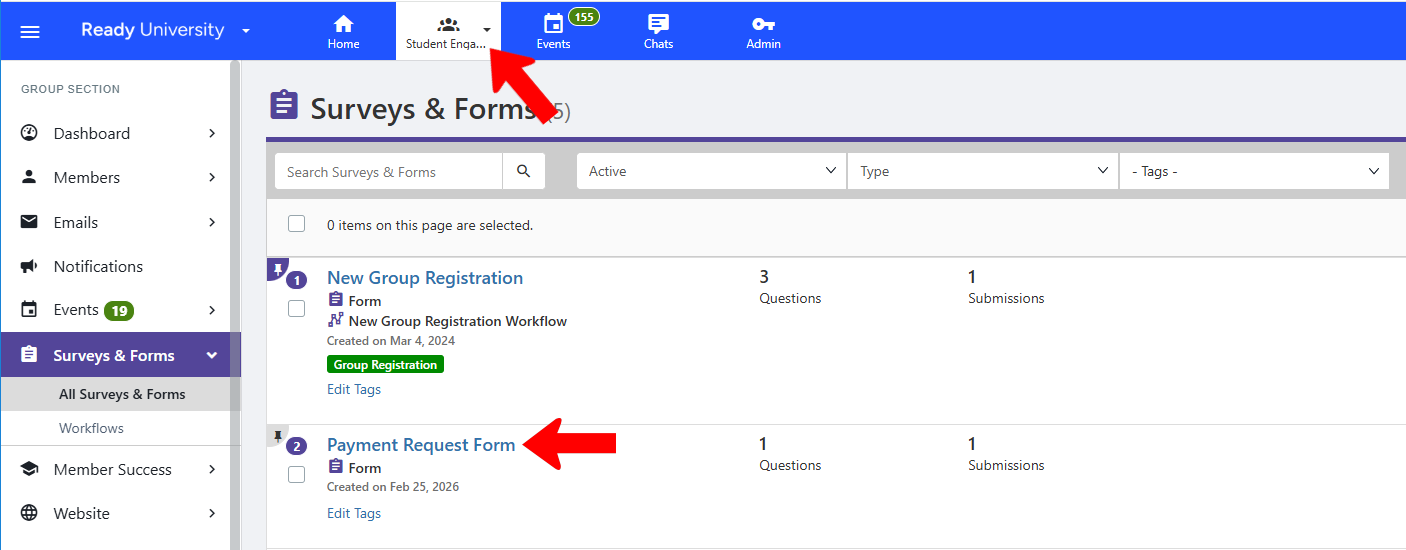
This form in this example contains just one mandatory question, and no workflows. This means only a simple approval Simple Form Approval will be required.

If you want to implement a multi-step approval form's Settings, the form must be linked to a workflow Form Settings, which is done in the form’s Settings Form Settings.
Once group officers start submitting payment requests, approvals are managed in the form. All approval notifications will contain a direct link to the form, and the form can also be accessed from the Surveys & Forms list Surveys and Forms List of the hosting group. Click the form name to see submissions.
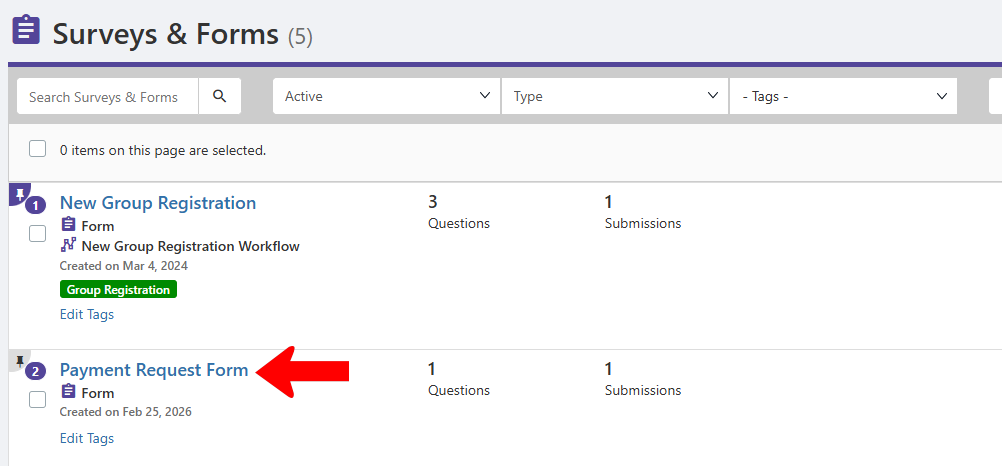
Another way to access the form is in Admin mode. Open the Approval Processes list and click the form name.

For payment requests against a simple budget or group funds, one submission will be listed. For payment requests against an advanced budget, there will be one submission for each line item.
Because the form in this example did not include a workflow, a simple approval Simple Form Approval is required. For each submission, you can click Approve or Reject (or Require Modification or On Hold).

For forms that are linked to a workflow, you would click See Workflow to track approval steps.
