When using an advanced budget, there is step-by-step process to follow. By default, this starts with group officers submitting a Budget Request, which then needs to be approved.
There are two types of users who can approve these requests: platform admins and budget administrators.
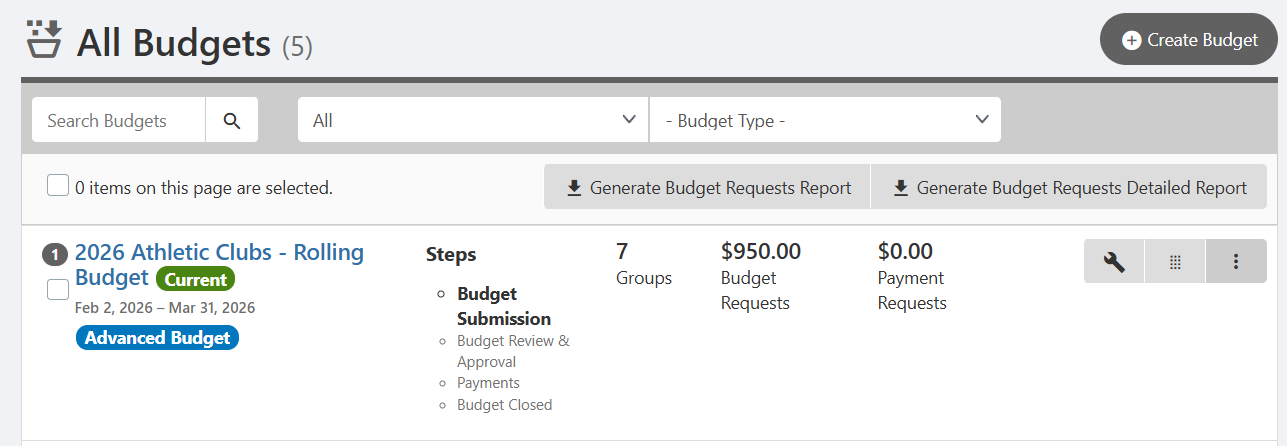
Any admin with Money permission can access the budget in the Budgets list Managing Budgets: Budgets List. To manage approvals, click the budget name.
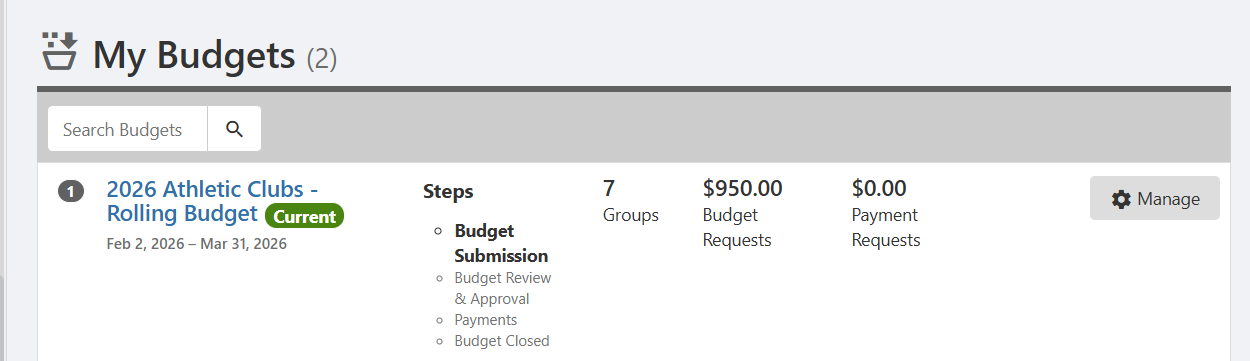
A non-admin user with Budget Administrator permission can access the budget in My Activity / My Budgets. (The Budget Admin position is assigned to users when creating the budget.) To manage approvals, click the budget name or its Manage button.
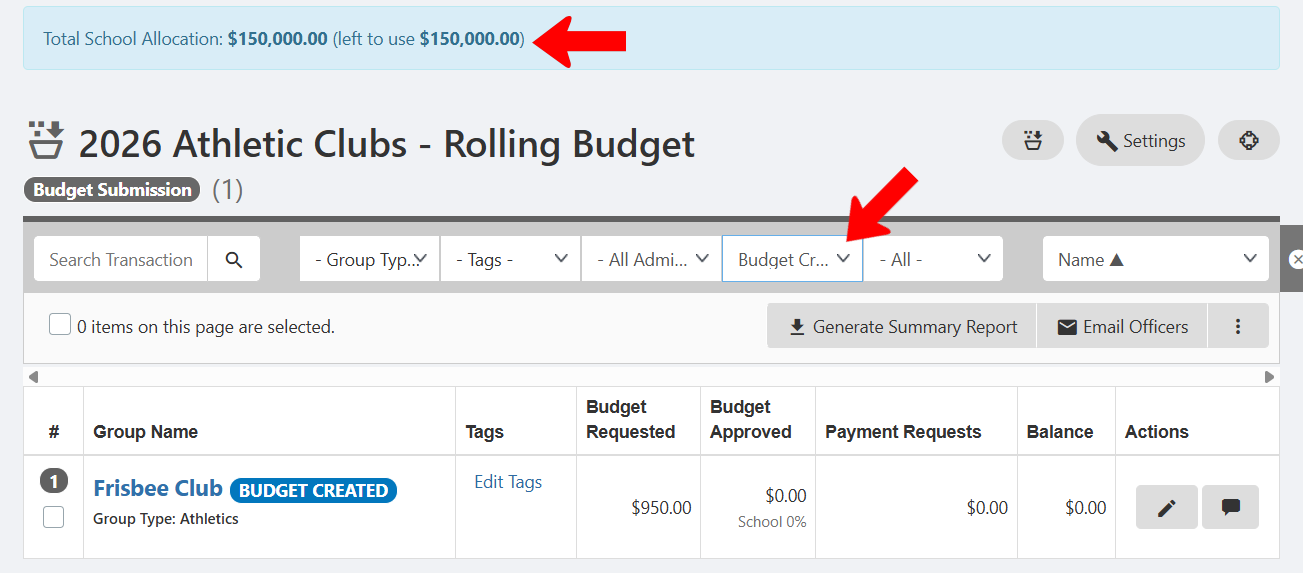
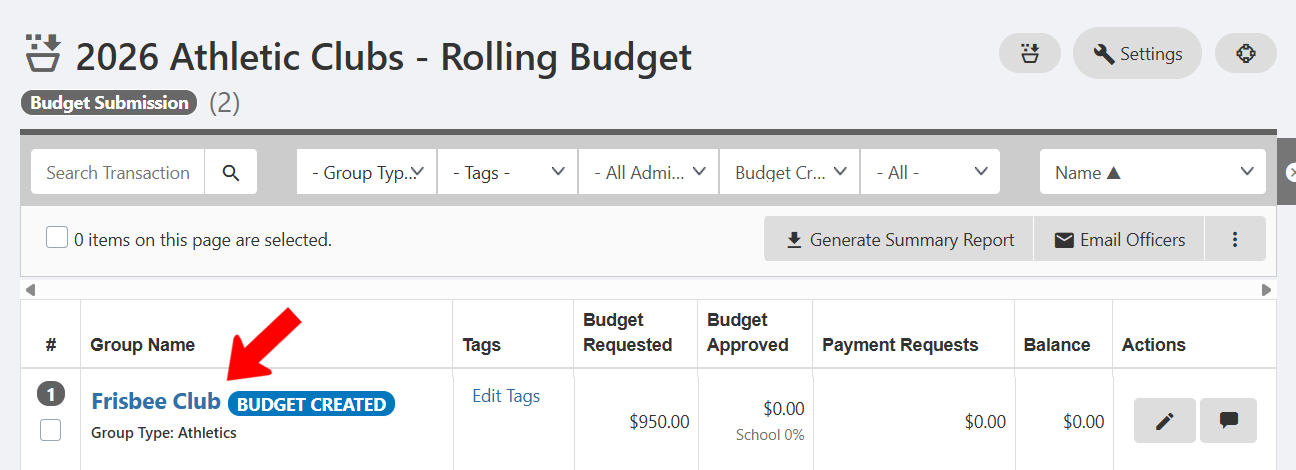
For reference, the total remaining allocation appears at the top. To find groups with pending budget requests, you can filter All Groups List: Managing Groups the list to Budget Created.
Click the name of the group making the request.
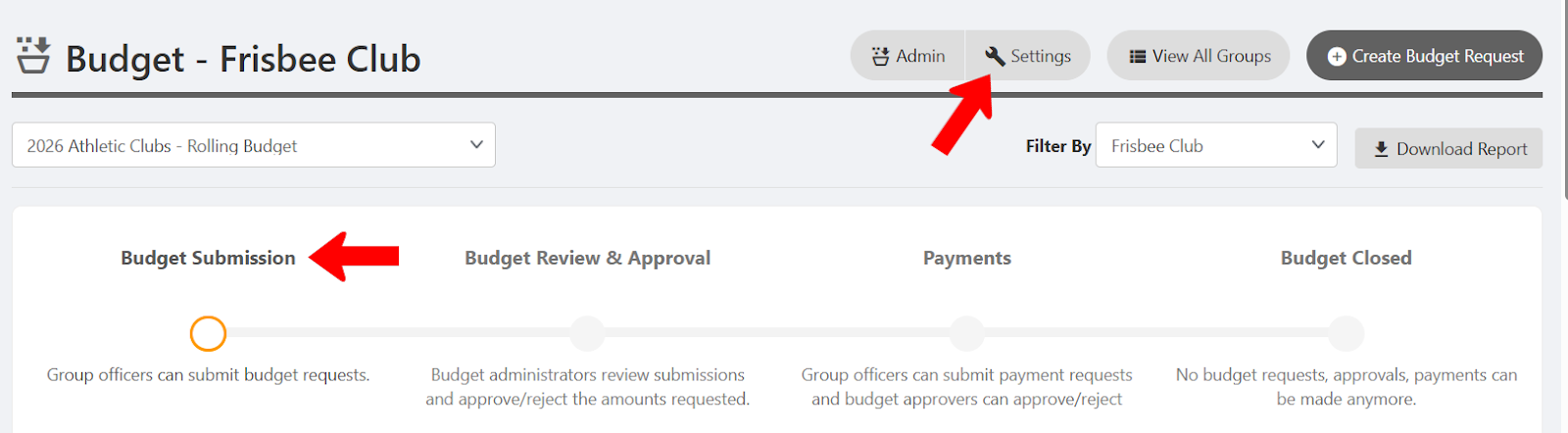
The current budget status in this example is Budget Submission, and this needs to be advanced to the next step in order to enable approvals. Click Settings.
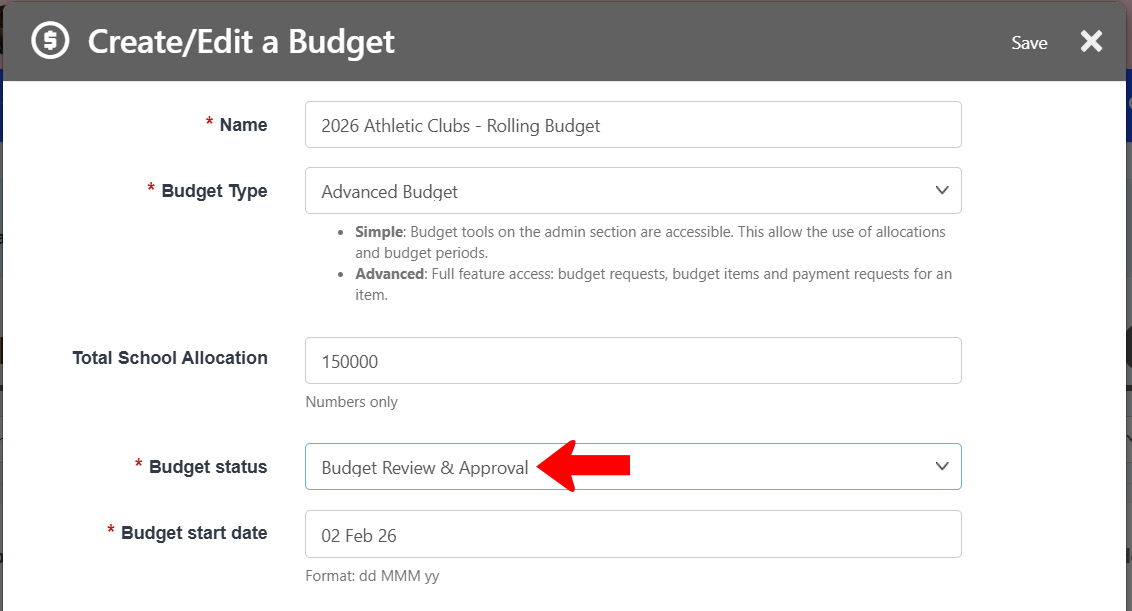
Change Budget Status to Budget Review & Approval.
Note: If you customize budget steps Customizing Budget Steps and Rolling Budgets to accommodate rolling submissions / approvals, you will not have to update the Budget status for approvals.
The budget is now in the next step.
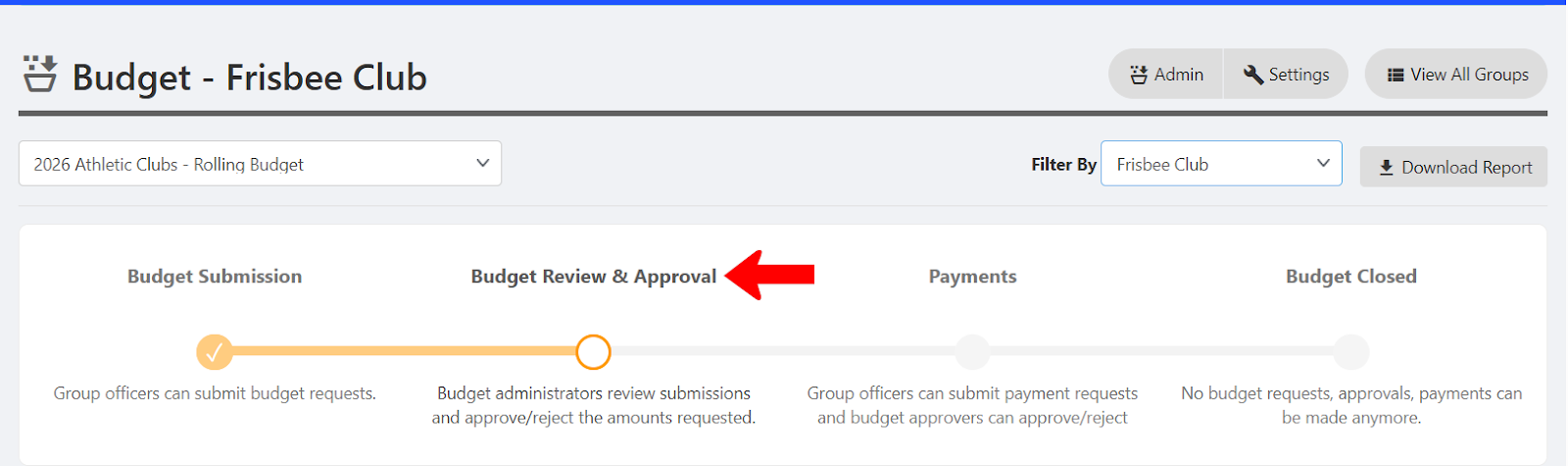
Note: Admins can go forward and backward in budget steps when needed, without affecting existing approvals. For example, you may have to go back to Budget Submission if new groups submit requests, or revert to previous steps to accomodate budget appeals.
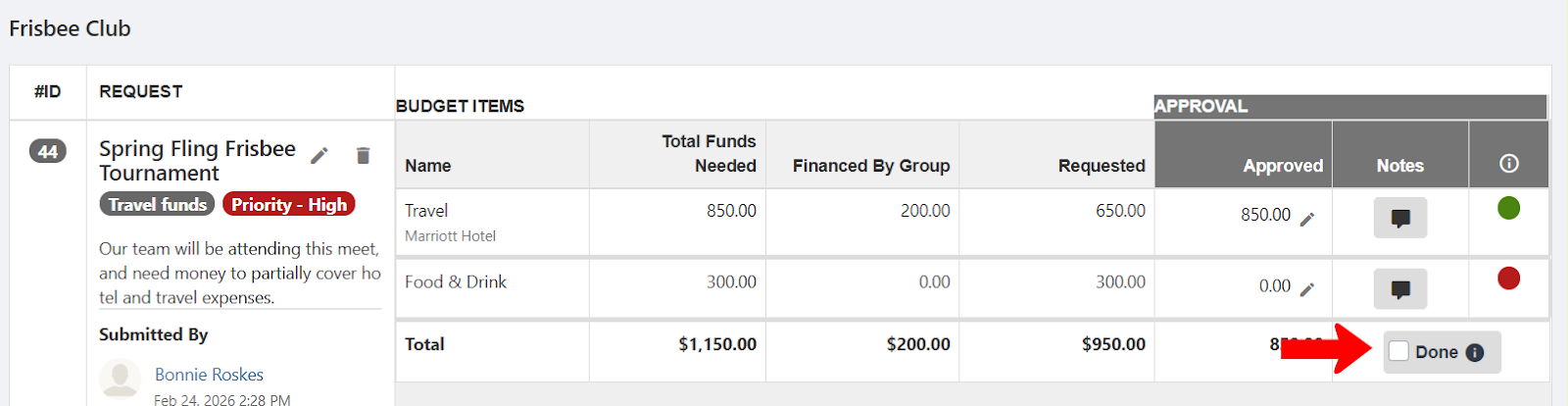
Each line item now has icons under Approved and Notes. Click Approve for each item, approving the full amount, entering a lower amount, or entering zero. You can also add an explanatory note which will be seen by group officers.
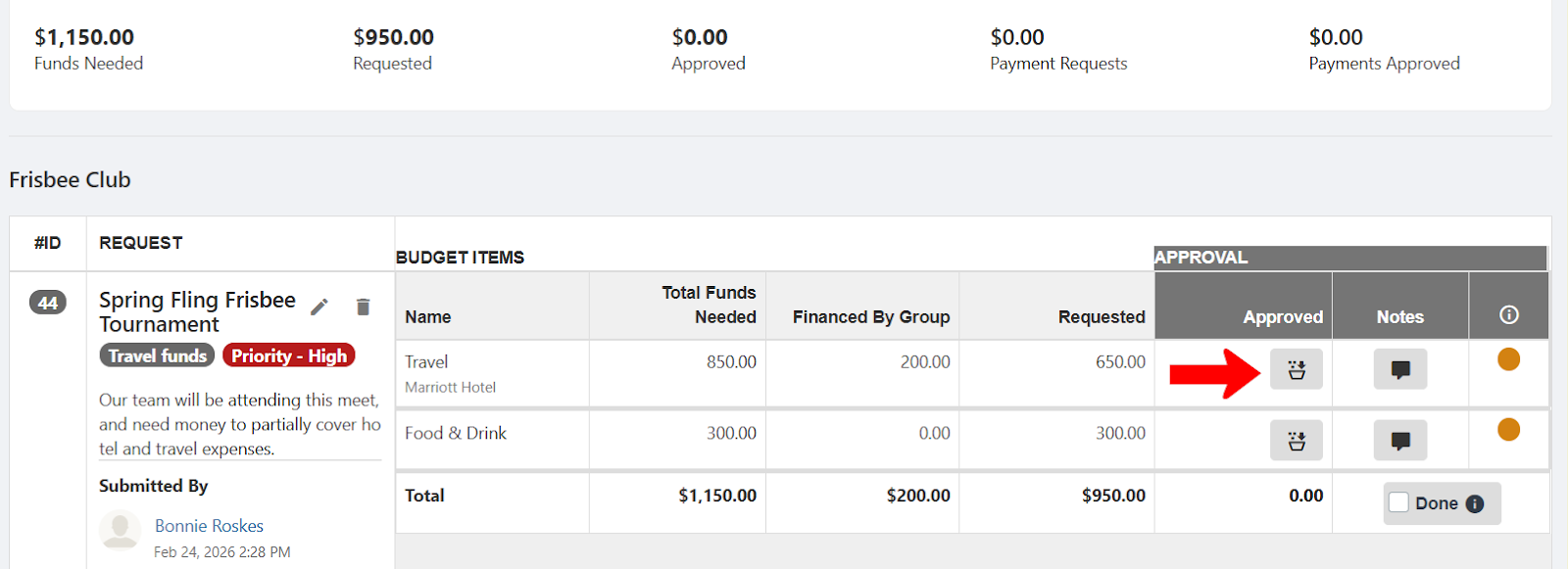
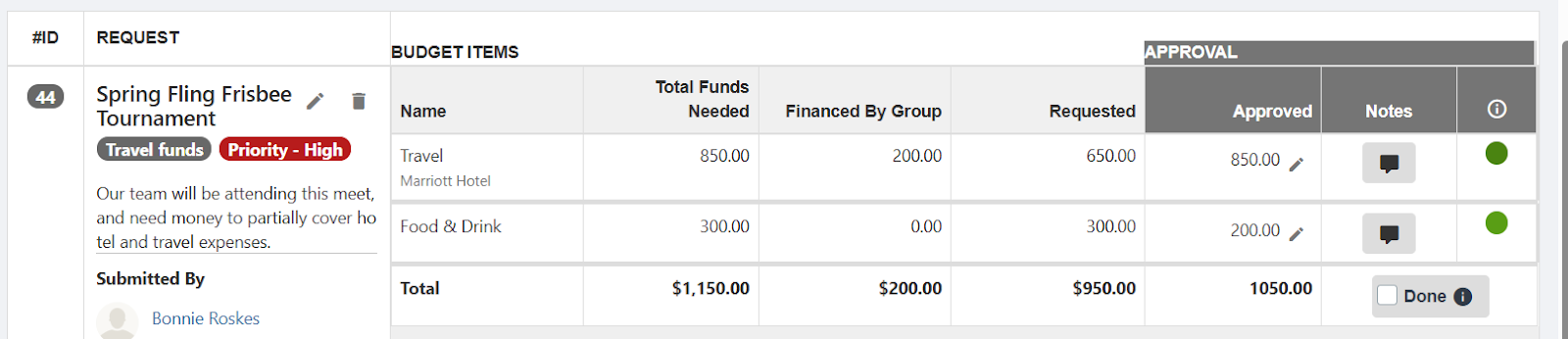
If the amount approved matches the amount requested, the Status icon turns green. If the amount is less than the requested amount, the Status icon is lighter green. Yellow indicates a new or pending item.
If the amount approved is zero, the Status icon turns red.
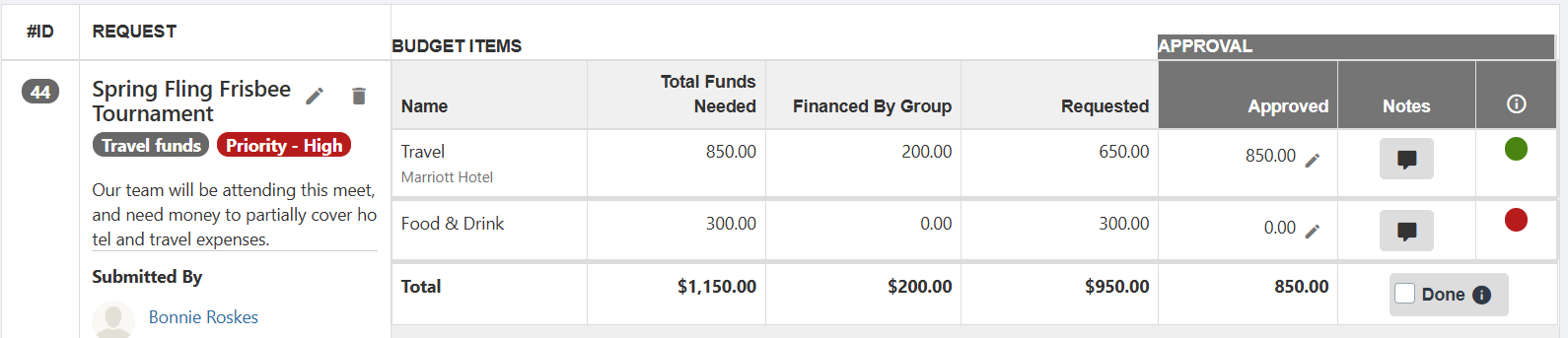
If enabled during the budget creation process advanced budget, there will be a Done checkbox for the request. Clicking this finalizes and locks the approved amounts, and sends a notification to the group officers. If changes are needed later, you can uncheck Done, make edits, and re-approve. (If there is no Done checkbox, notifications are not sent out, except as specified in an approval form. Group officers can always check status in the Accounting Book.)