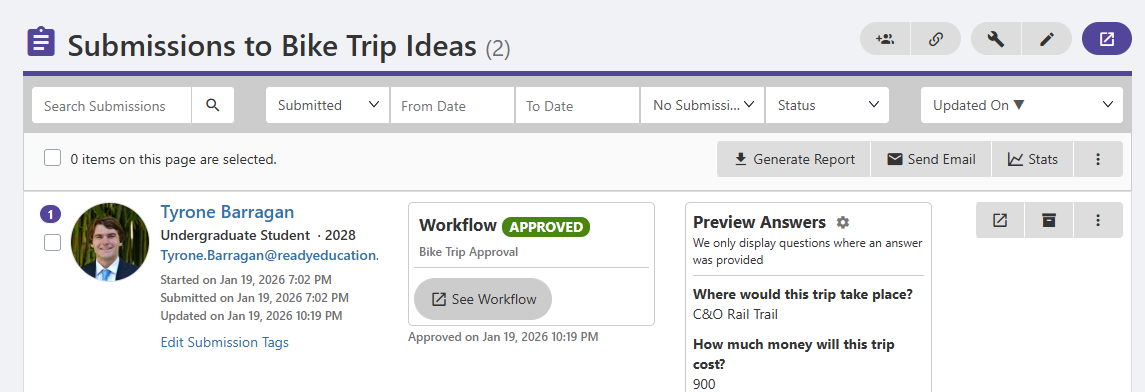
If a form is linked to an approval workflow Creating an Approval Workflow, then once submissions come in, those who are assigned to workflow teams can begin the approval workflow process.
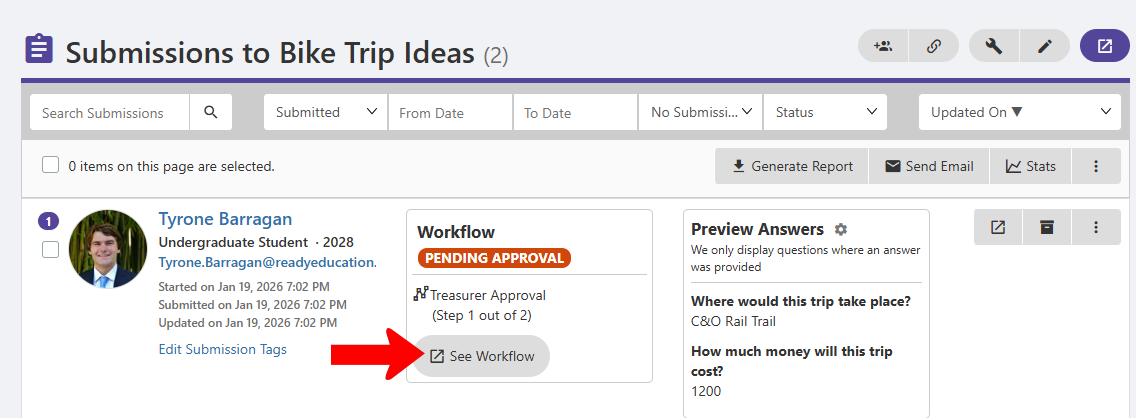
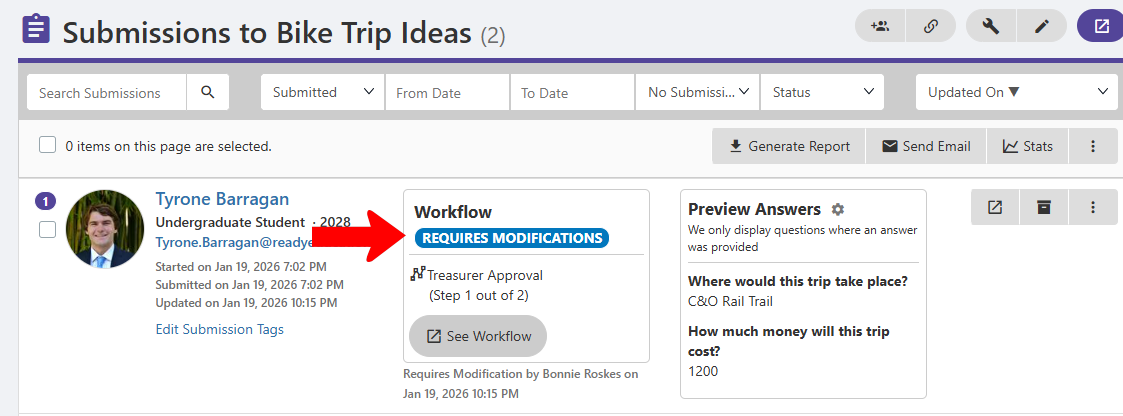
Start by managing the form Managing Forms. For the submission you want to approve, click See Workflow.
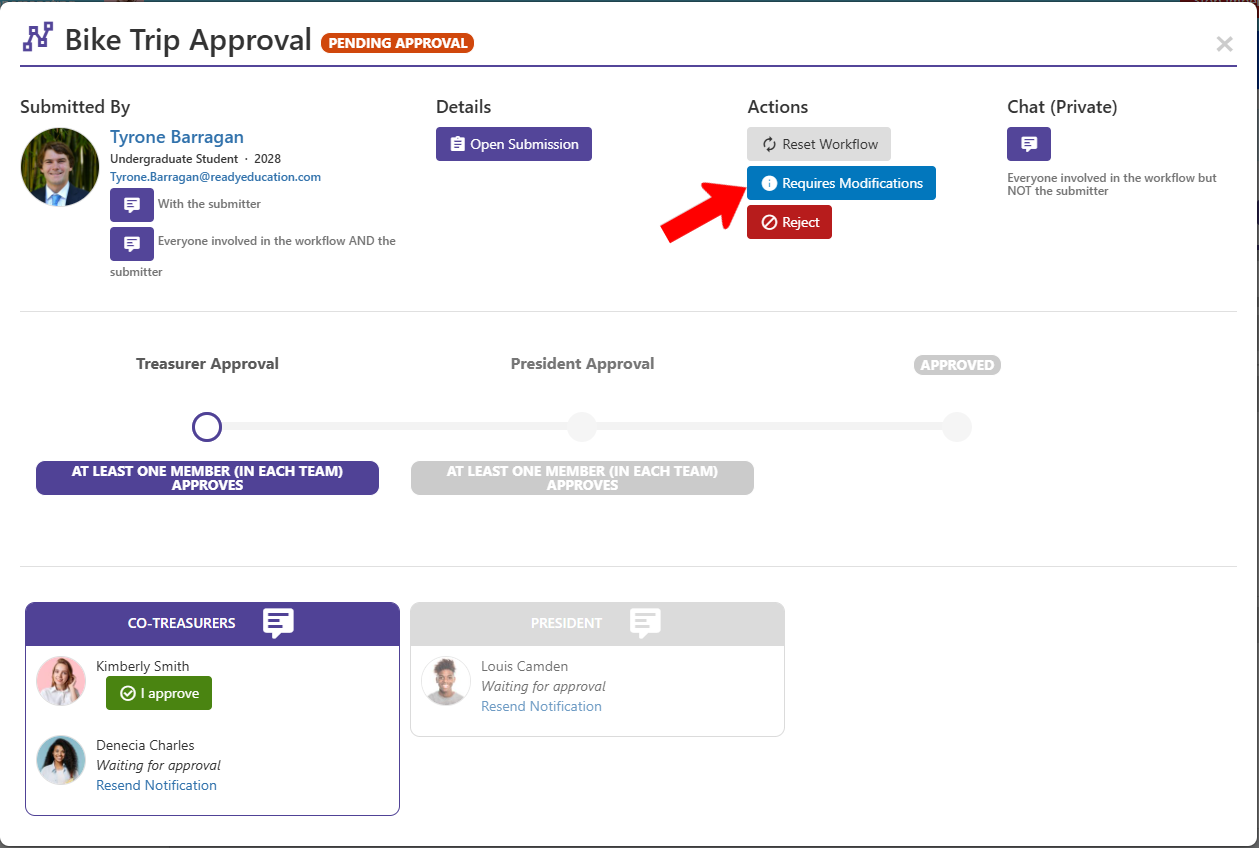
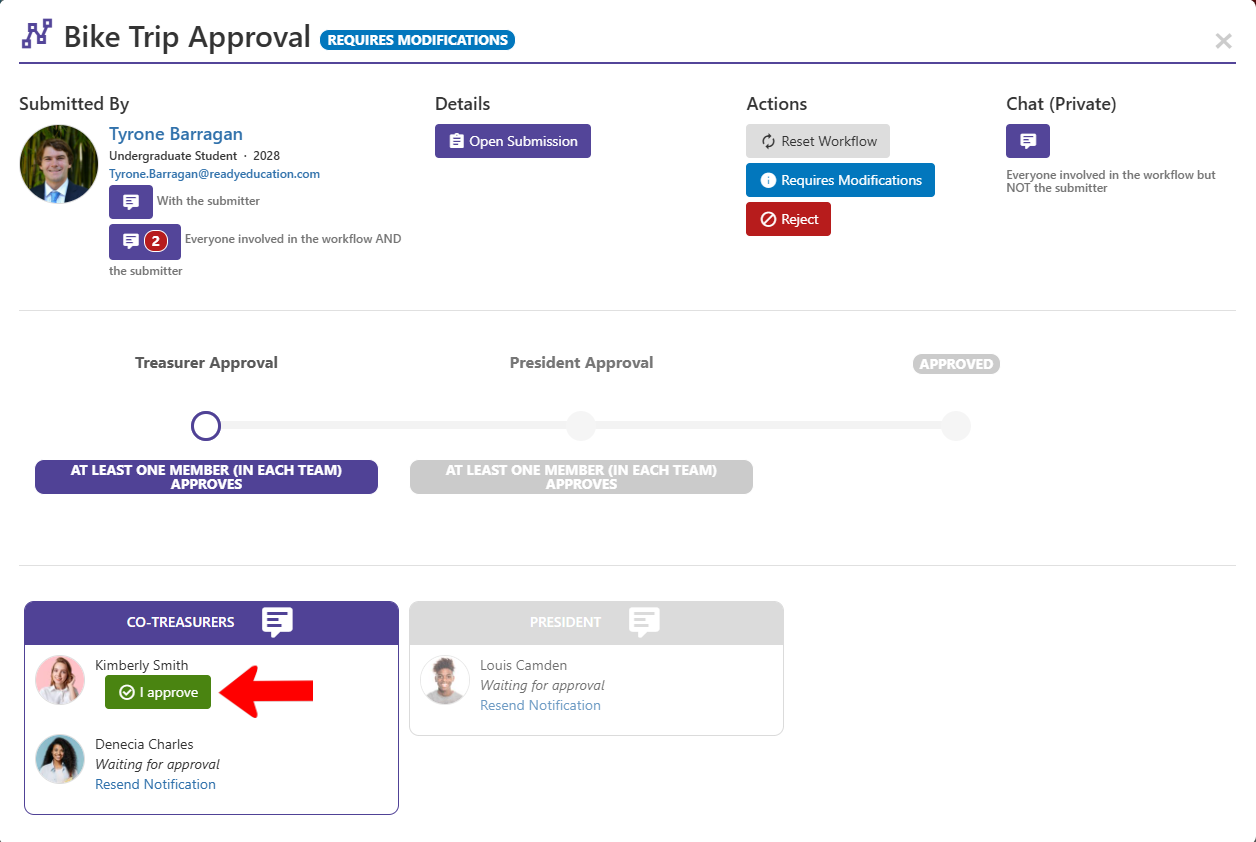
The workflow steps are listed along the bottom, currently on Step 1 - Treasure Approval. If the person signed in is a member of the workflow team for this step, they will see the I Approve button next to their name.
In this example, because at least one member needs to approve (as opposed to all team members), only one Co-Treasurer approval is required.
Other options include Open Submission, to see submission details, Chat with the submitter or workflow team members, Resend Notification to any workflow team member, and several Actions including Reset Workflow and Reject.
In this example, the co-treasurer would like the submitter to change the cost estimate, so the action is Requires Modifications.
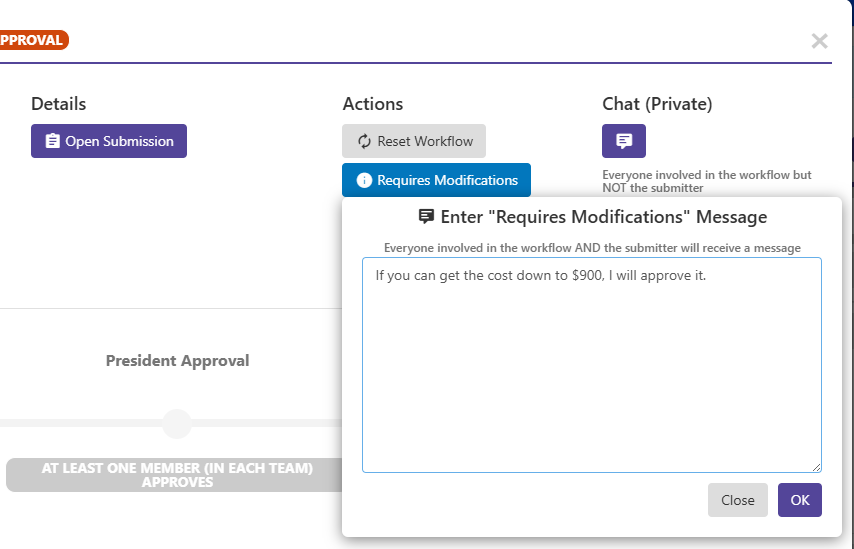
When requiring modifications, include an explanatory note for the submitter.
The submission status changes to Requires Modifications.
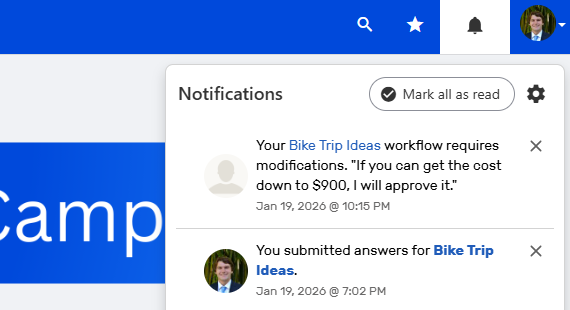
The submitter will receive a notification of the modification request.
The submitter can find their submission, also marked on their end as Requires Modifications, make the required changes, and re-submit.

On the approver side, either co-treasurer can open the submission again, verify that the requested change was made, and approve.
This sends an automatic notification to the team assigned to the next step, and advances the process to Step 2 - President approval.
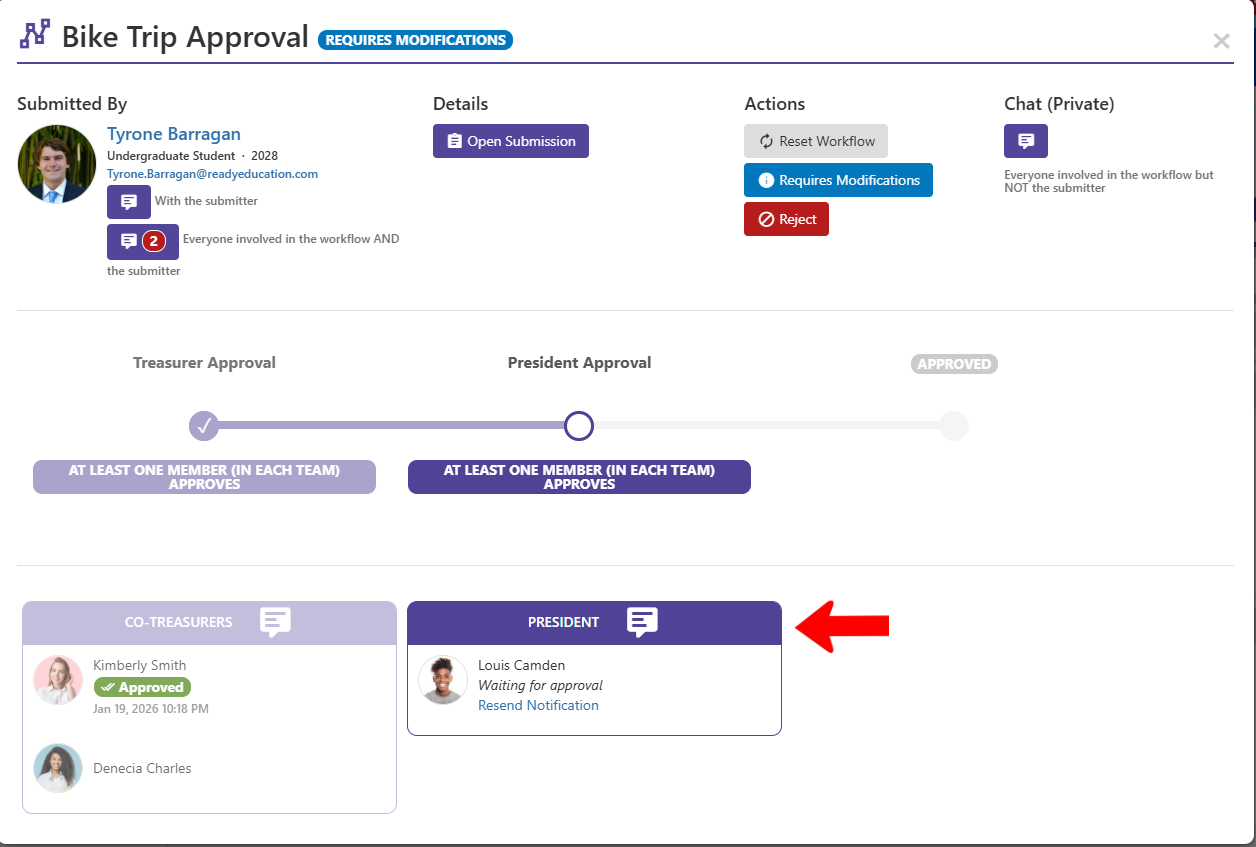
Only the one member of the President workflow team can approve this step.

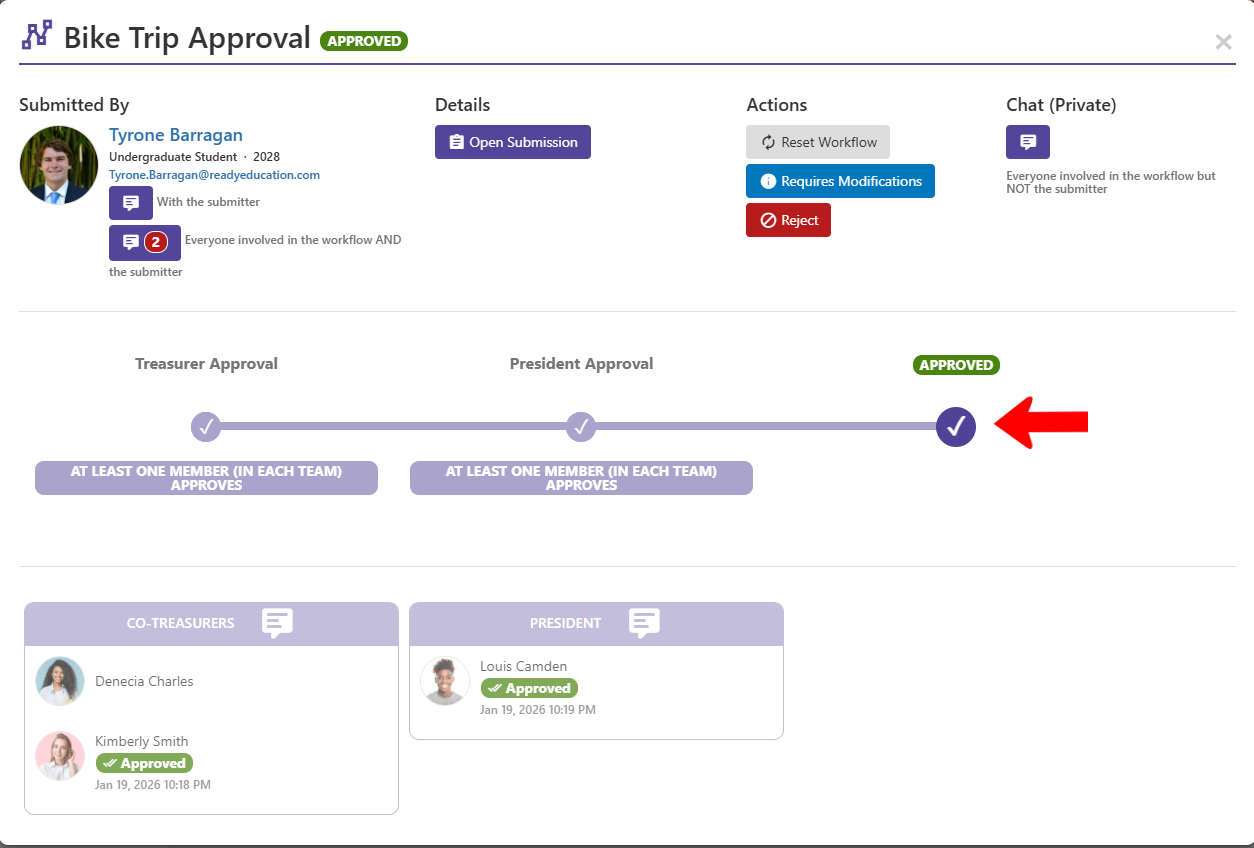
After the last step, the submission is marked as Approved, and the submitter receives a notification.
Approved also appears in the Surveys & Forms list.