
Admins with groups permission can manage all groups (or the groups to which they have access)
Note: Admins can also manage group members and group officers.
Switch to Admin mode if needed, and open Groups on the left.

This opens the All Groups list. At the top are buttons to open the Officers list Officers List: Managing Officers and Create Group.
This list can be searched or filtered for any of the above features, plus group status - whether approved, pending approval, requires re-registration, and / or rejected.
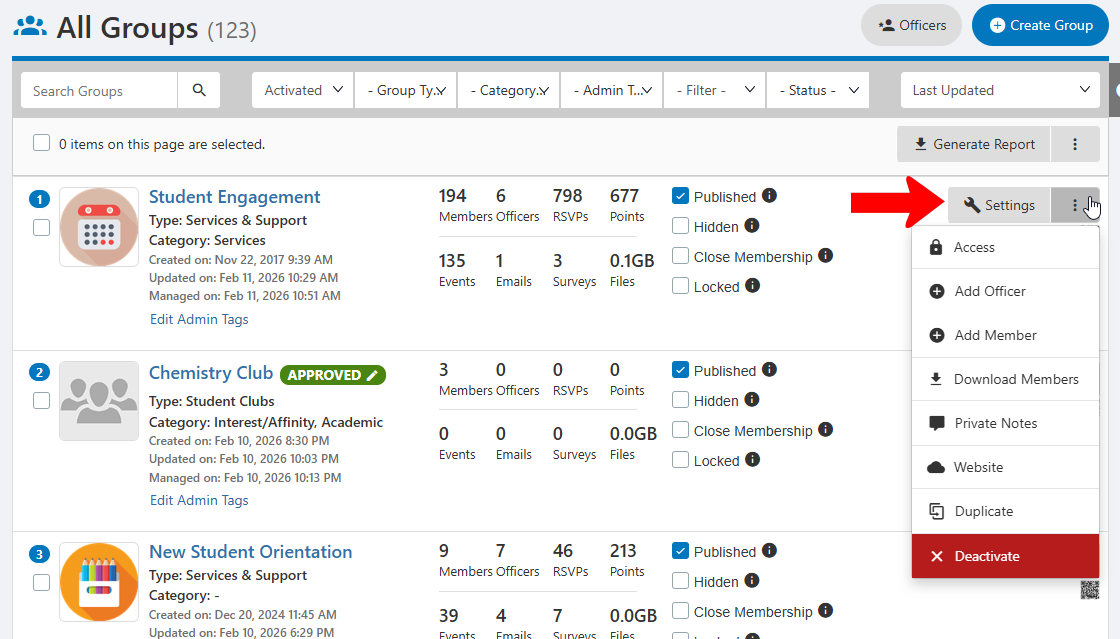
Each group is listed with its Group Type Tags, Group Category or Group Admin Tags, statistics (members, events, points, etc.), and whether published, visible, open membership, or locked.

Each group has a Settings Group Settings button, and the QR code for The Group Website.
Clicking the More (three-dot) icon opens a menu with options to set Access Rights The Group Website, add members or officers, download a members list, open the website, duplicate, or deactivate.
When one or more groups are selected, you can generate a groups report. Clicking the More icon opens a menu with options to:
- Email Tags members or officers
- Change Group Type
- Add or remove Group Category tags
- Change group status (to require re-registration Tags)
- Publish or unpublish
- Open or close membership
- Add or remove Group Tags
- Hide or unhide
- Lock or unlock
- Deactivate Tags
