
As a group officer, one of the first tasks you may want to perform is to add other officers to fill leadership roles. All officers will appear on your Officers list Officers List: Managing Officers.
Note: In the Advanced tab of the Group Settings, a platform admin can enable options to automatically collect group officers from other groups.
Start by managing your group Managing Your Group, Group Dashboard.
Adding a User Manually
Open the Officers list Officers List: Managing Officers, and click Add Officer at the top right.
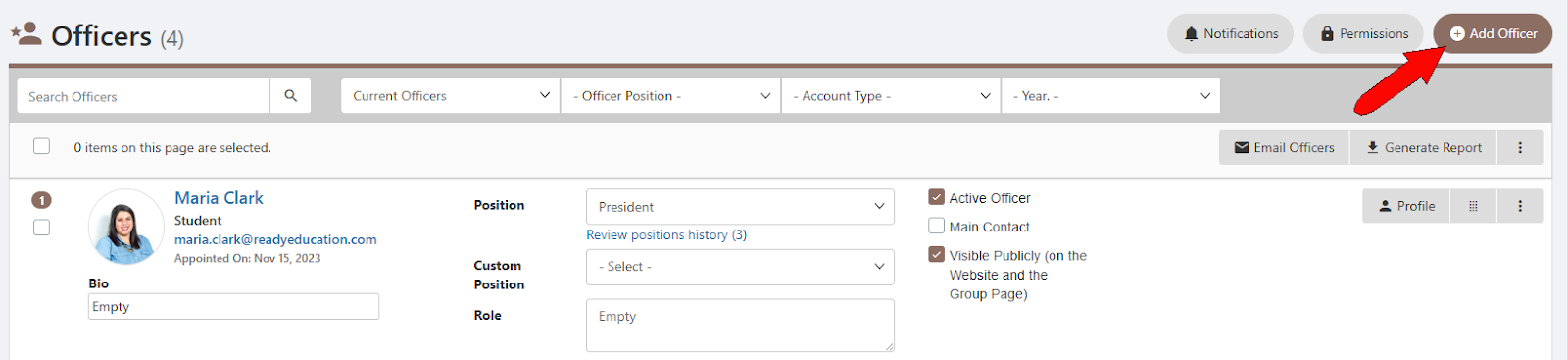
Find and select the person you want to add as an officer. You can add multiple officers this way.
Choose whether to notify your new officer via email, then click Add. The new officer(s) are added to the Officers list.
Promoting Officers from the Members List
Open your Members list Members List: Managing Group Members.
Find the member you want to promote, and check their Officer box.
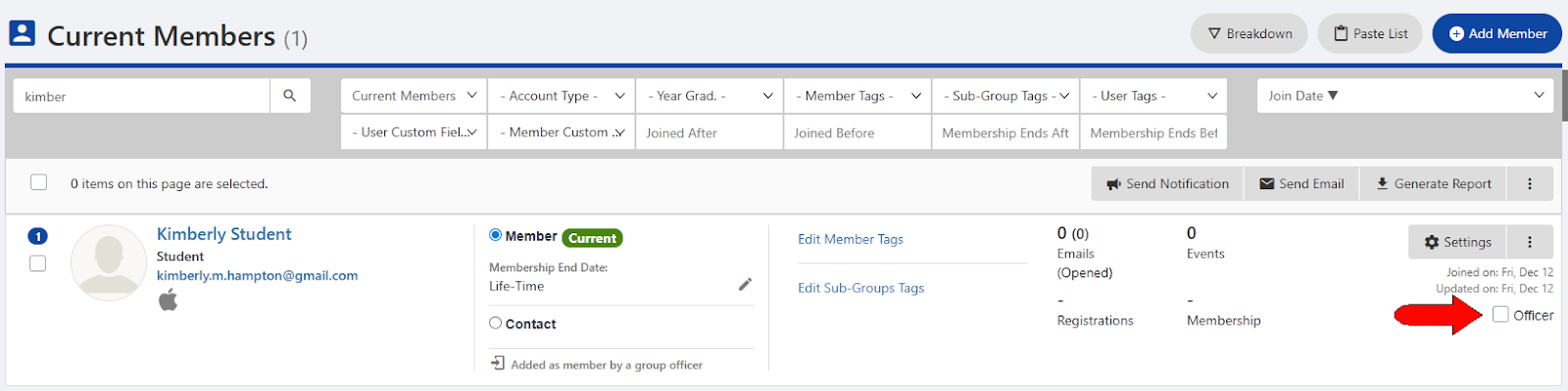
Confirm that you want an email sent to the new officer. The promoted member will then appear on the Officers list.
Note: You can also mark group members as officers when Uploading Group Members.
You can also:
- Set officer positions, custom positions, and roles Managing Officer Positions, Custom Positions, and Roles
- Set officer permissions Managing Officer Positions, Custom Positions, and Roles
- Set officer notifications Set officer permissions