
Whereas platform users can use the group registration process to form a group, and await approval, admins can create groups from scratch. This requires that you have admin permission for Groups.
This article covers how to add a new group manually.
Notes:
- You can also upload groups from a spreadsheet Uploading New Groups
- If you have a group template set up for the type of group you want to add, you can duplicate that template and edit details as needed.
Switch to Admin mode if needed and open Groups along the left.

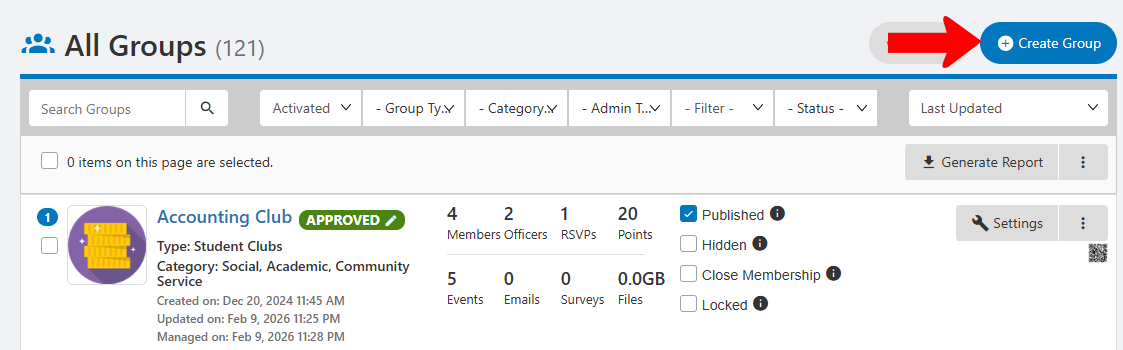
This opens the All Groups list All Groups List: Managing Groups. Click Create Group.
In the Create / Edit Group popup, mandatory fields include Group Name and one Group Type (configured by admins in Custom Values). Categories are Group Category Tags, and one or more of these can be selected.
You can choose a logo image, and the characters in Group acronym will be used in The Group Website.

Other options on this popup include:
- Mission, Membership benefits: Group information that will be included in the Group Page Managing the Group Page.
- Close membership: Disable this if you want users to be able to join this group. For a department Groups and Departments, such as a student services organization, you will likely want to enable this option.
- Group email: Typically the general contact email for the group
- Website: If you plan to refer users to an external website, rather than The Group Website provided by CampusGroups, enter that website here.
After saving, the group is added to the All Groups list, with its Group Type and any Group Category tags. You can also add or create Admin Group Tags.
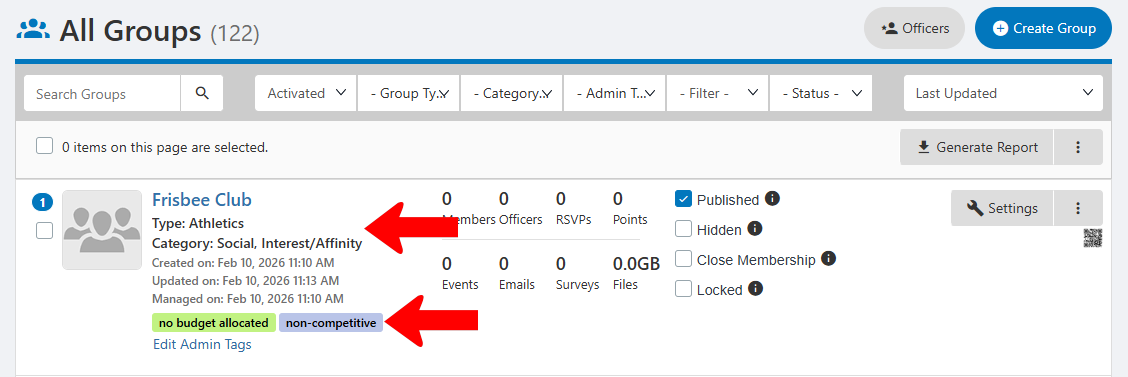
By default a new group is published - available for users to see. Checking Hidden removes the group from the Groups page but events will still be visible in the calendar. Checking Lock will prevent group officers from managing the group.
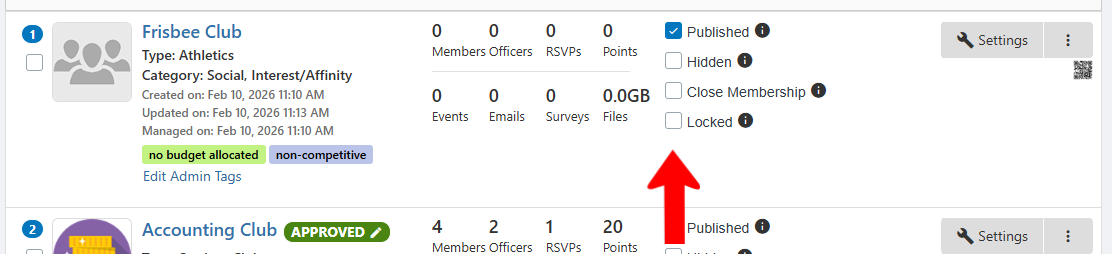
Note: Locking a group may be a result of disciplinary action or overdrawn funds. While a group is locked, group members can still interact with the Group Page, but officers cannot take any actions.
On the right you can access Group Settings. These are identical to the settings accessed by officers with an additional admin-only tab Group Settings.
Clicking the More icon opens a menu with options to set Access Rights, add officers or members, duplicate, etc.
